 NAT VPN
How to connect NAT VPN on Android
Start with Connection in your NAT VPN dashboard. It helps you choose an Android app and add your active subscription without entering server addresses manually.
Choose an Android app
Open the dashboard in your phone browser, check that your subscription is active and select Android in the instructions.
Install the app using the link provided there.
Avoid apps with the same name advertised by unknown sources: a matching name does not verify the source.
Add the profile from the dashboard
Press the connection button for your chosen app and confirm that it may open.
After import, check that a list of NAT VPN connections appears.
If Android does not offer the app, launch it manually once, then retry the import or add the link manually.
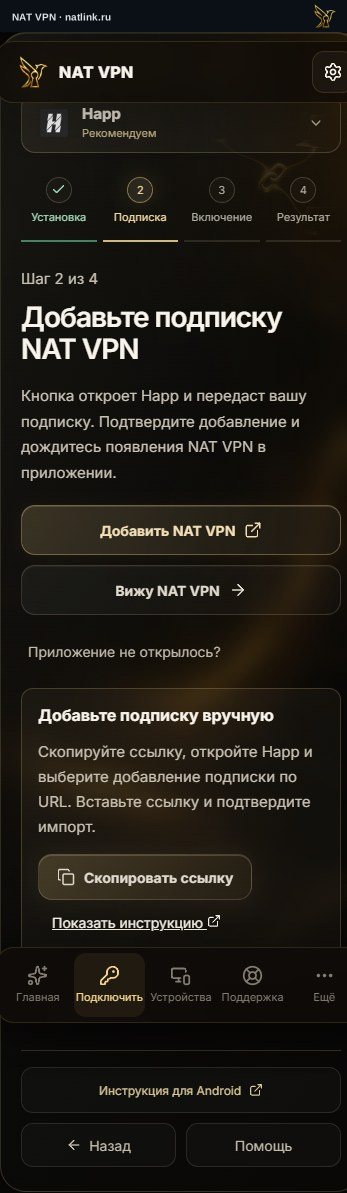
Russian NAT VPN dashboard for Android, with Happ selected. This is a demonstration account; use your own subscription. The green outline marks the control.
Confirm the system prompt
Turn on VPN in the app and confirm the Android request to create a connection.
Disconnect any other VPN app that is already active.
Once connected, open a website and check that the page loads.
Android itself requests VPN permission. You do not need to give support your Google account password or verification codes to set it up.
If the connection stops when the screen turns off
First check that the issue happens specifically after locking the phone.
Review the battery settings for the VPN app: some devices restrict background activity.
Setting names vary by manufacturer.
Change restrictions only for this app and test again, without disabling battery saving for the entire system.
If Wi-Fi works but mobile data does not
Refresh the subscription in the app and check the connection modes available in the current list.
Mobile network conditions can differ from home Wi-Fi.
Tell support your carrier, network type, app and exact error message; the VPN icon alone cannot identify the cause.