 NAT VPN
How to set up NAT VPN on iPhone and iPad
You need an active NAT VPN subscription and a compatible app. It is easiest to follow the setup in Safari on the iPhone or iPad you want to connect.
Check your account and install the app
Sign in to natlink.ru using the same method you used to purchase your subscription.
In Connection, select iPhone / iPad.
Open the app link in the instructions and install it from the App Store.
If the app is unavailable in your store region, check the other iOS options in the instructions.
Installing the app does not create a NAT VPN subscription. Check your access expiry date and available device slots in your account dashboard.
Send the subscription to the app
Return to Connection and press the button to add the subscription to the installed app.
Allow the browser to open it.
Check that a NAT VPN profile and a list of connections appear.
If an in-app browser cannot open the app, open the dashboard in Safari or import the link manually as described in the instructions.
Your subscription link provides access to your account. Do not publish it or submit it to third-party link checkers.
Allow the VPN connection
Turn on the connection inside the app.
The first time, iOS may ask for permission to add a VPN configuration.
Confirm the system prompt on your device.
If another VPN app is connected, disconnect it first: two VPN connections can conflict.
Check the connection on your network
Open a regular website in Safari.
Then test Wi-Fi and mobile data separately if you use both.
The VPN icon means that the system has created a connection; it does not by itself prove that websites load.
If a page will not open, use the troubleshooting guide below and Support in the dashboard.
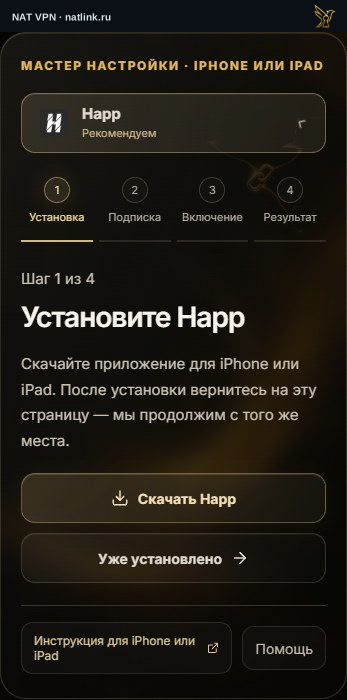 Press to expand the screenshot ↗
Open the full screenshot ↗Russian NAT VPN dashboard on iPhone: Download Happ opens the official app page. Return to the wizard after installation.