 NAT VPN
How to connect NAT VPN on Linux: app and subscription import
On Linux, the app name is only part of the choice: its build must also support your distribution and computer architecture. Start with the official link in the NAT VPN instructions.
Find a Linux build
Select Linux in the instructions and open the app’s official source.
Check the supported architecture and distribution requirements.
Package availability and installation method depend on the chosen client.
Do not run random installation commands from comments as root. Follow the developer’s instructions for your particular build.
Import the link from your dashboard
Check your active subscription and device limit in the dashboard.
Add the subscription using the open-in-client button or by adding the URL manually.
If Linux has not registered the app’s link handler, manual import can complete this step.
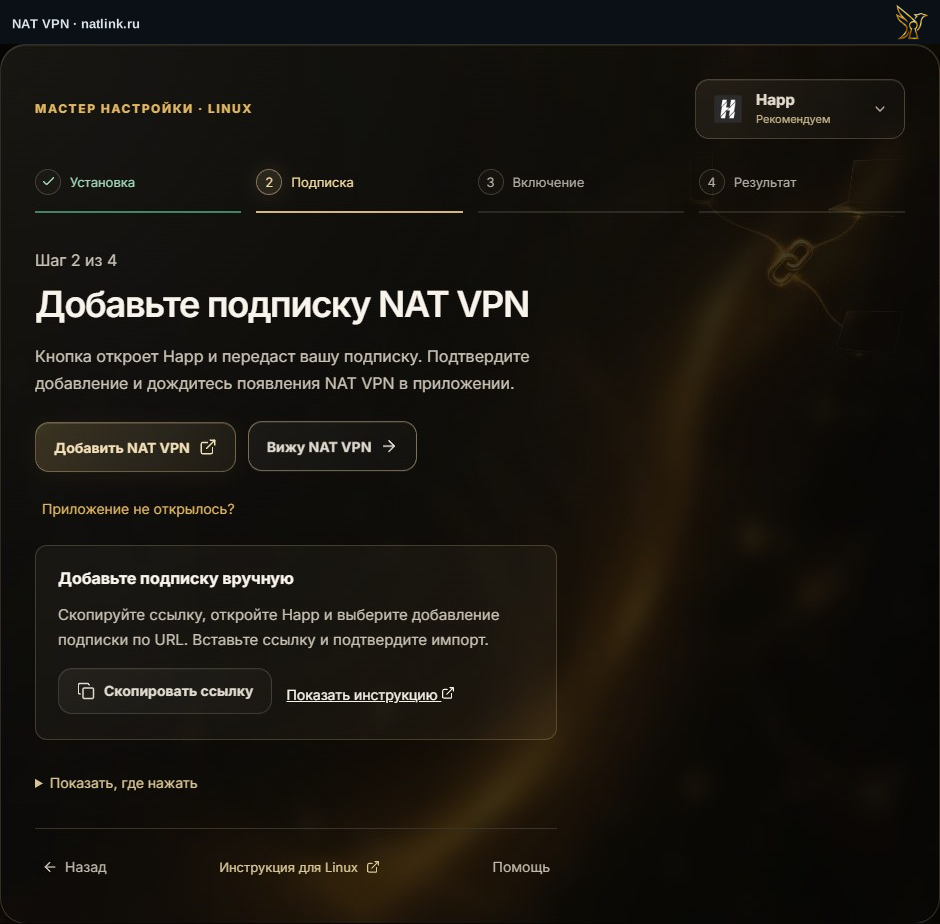
Russian NAT VPN dashboard for Linux, with Happ selected. This is a demonstration account; use your own subscription. The green outline marks the control.
Check the connection mode
Enable the profile in the app.
For TUN, the client may need extra system permissions; how to grant them depends on the app and distribution.
Proxy mode may only cover programs that use the system proxy.
Do not guess changes to routes, DNS or file permissions. If the app reports a specific permission error, save the text for support.
Compare the browser and app
Open a regular website and test the program you need.
If no connection works, refresh the profile and check service status.
Tell support your distribution, architecture, client version and error message; hide the personal link in screenshots.