 NAT VPN
How to connect NAT VPN on Mac: macOS app setup
On Mac, start with your subscription and an app for macOS. Select your system in the instructions: a Windows or Android build will not run on a Mac.
Select macOS in the instructions
Open the NAT VPN dashboard on your Mac and check the subscription expiry date and available device slots.
Select macOS in the instructions and install the app using the official link provided there.
If the source offers several builds, check compatibility with your macOS version and Apple Silicon or Intel processor. Do not disable system protection for an unknown installer.
Add your subscription
Return to Connection and open the subscription in the installed app.
If the browser cannot pass it to the client, import the link from your dashboard manually.
Wait for the NAT VPN profile and connection list to appear.
Do not publish your subscription link or paste it into a search engine. It provides access to your account.
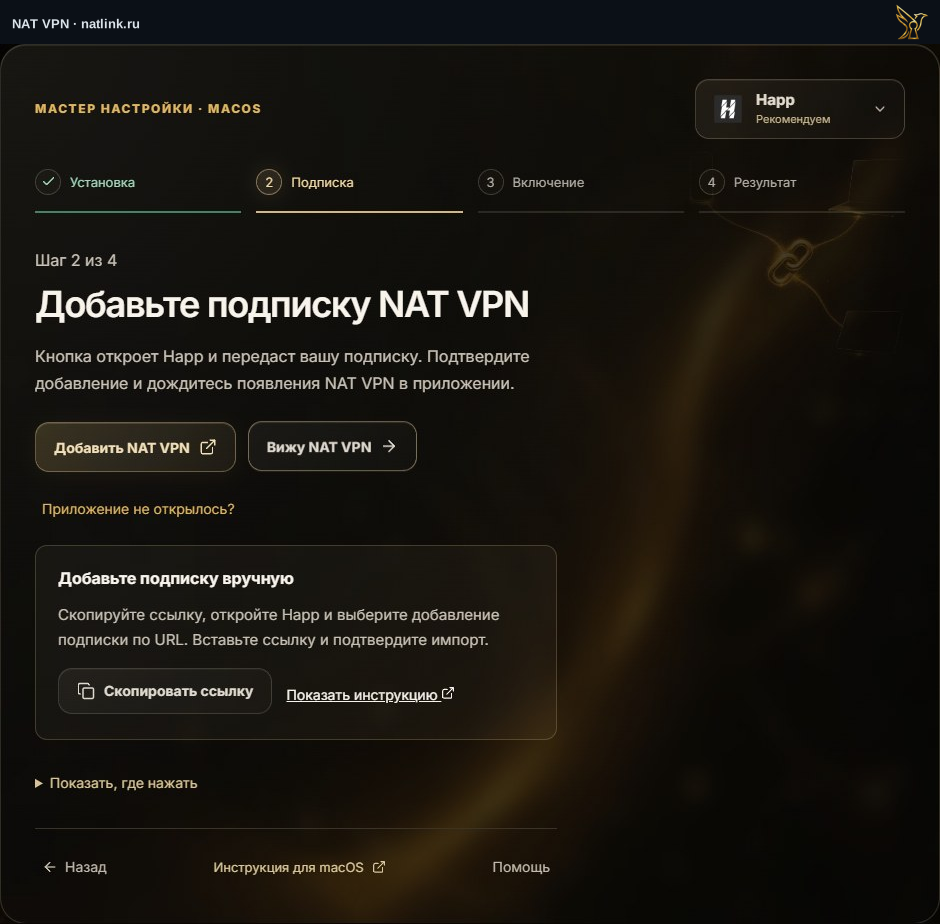
Russian NAT VPN dashboard for macOS, with Happ selected. This is a demonstration account; use your own subscription. The green outline marks the control.
Confirm the macOS prompt
Turn on the connection in the app.
The first time, confirm the system request to add a VPN or network extension if it appears.
On work Macs, these permissions may be controlled by your organization’s administrator.
Test the apps you need
Check that a regular website loads, then test the app you use.
If only the browser works, check the client’s connection mode: system Proxy and TUN may cover different apps.
Do not change corporate network settings without approval.