 NAT VPN
How to connect NAT VPN in Karing on iPhone / iPad
Prepare an active NAT VPN subscription and Karing for iPhone / iPad. The screenshots show the Russian interface and a demonstration dashboard account; use your own link in the app. The green outline marks the control you need.
Install the app
Install Karing for iPhone / iPad using the official link below.
Open the app at least once.
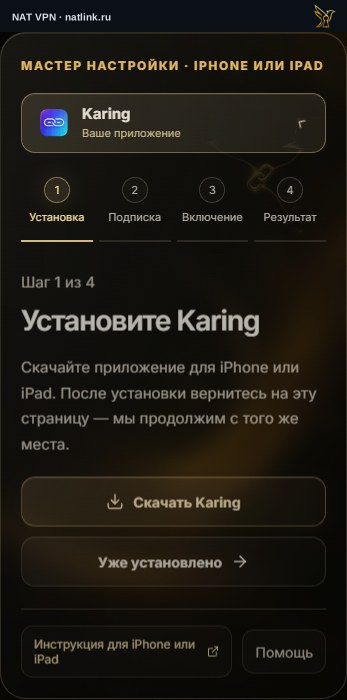
Russian NAT VPN dashboard for iPhone / iPad, with Karing selected. This is a demonstration account; use your own subscription. The green outline marks the control.
Open your subscription in the dashboard
In the NAT VPN dashboard, open Connection.
Select this same app and press Add NAT VPN.
For manual import, expand App did not open? and copy the link.
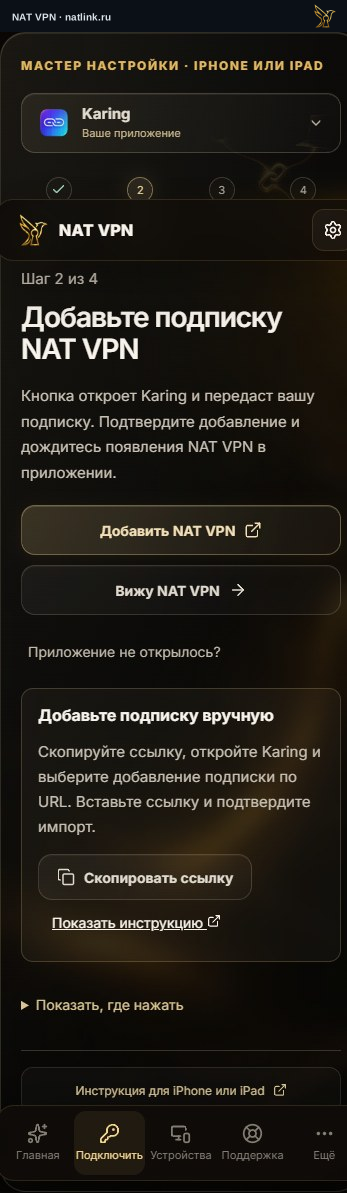
Russian NAT VPN dashboard for iPhone / iPad, with Karing selected. This is a demonstration account; use your own subscription. The green outline marks the control.
Add a profile
On the Karing home screen, open Add profile.
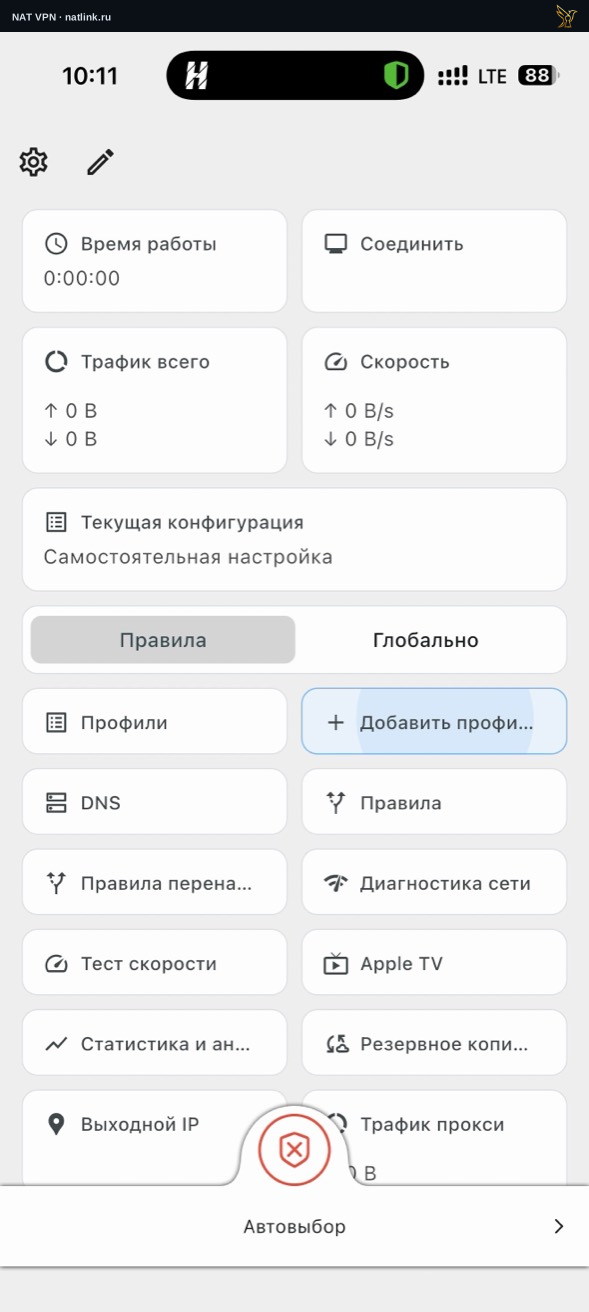
Russian Karing interface: press the Add profile tile on the home screen.
Paste your NAT VPN link
Choose Add subscription and Import from clipboard.
If a link field opens, paste the NAT VPN URL and save it.
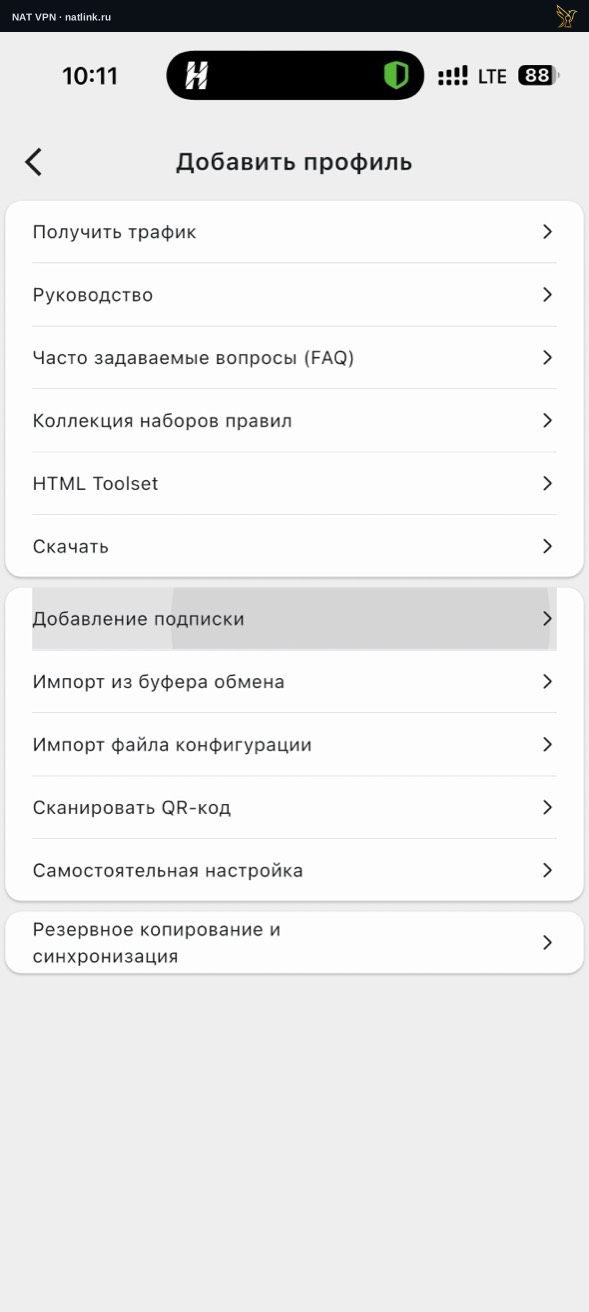
Russian Karing interface: choose Add subscription.
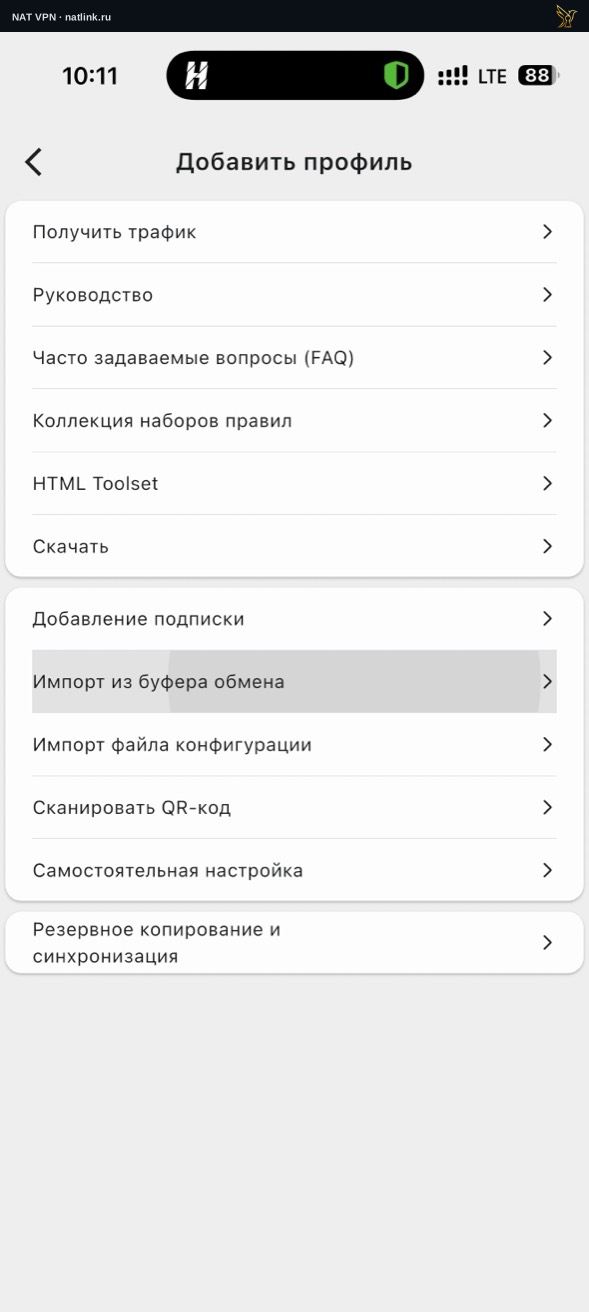
Russian Karing interface: choose Import from clipboard to use the copied link.
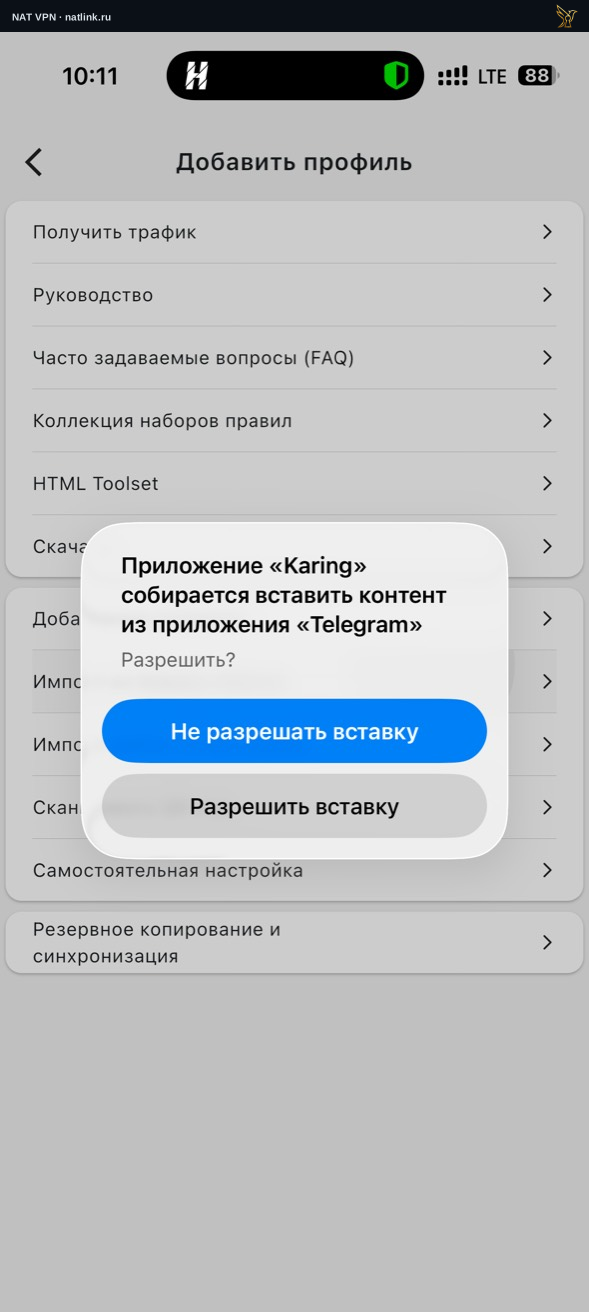
In the Russian iPhone system prompt, press Allow Paste.
Turn on VPN
Open Karing, select the NAT VPN profile and connect.
If Auto is available, use it for automatic selection.
Check once: in My configurations → NAT VPN, ISP routing rules must be enabled. In Settings → Routing, the Disable ISP routing rules switch must be off. The first time you connect, allow the VPN configuration in the system prompt.
Check the result
Open a website or the app you need and check that it loads.
Then return to the NAT VPN setup wizard and press Everything works.
If there is no connection, open Support.
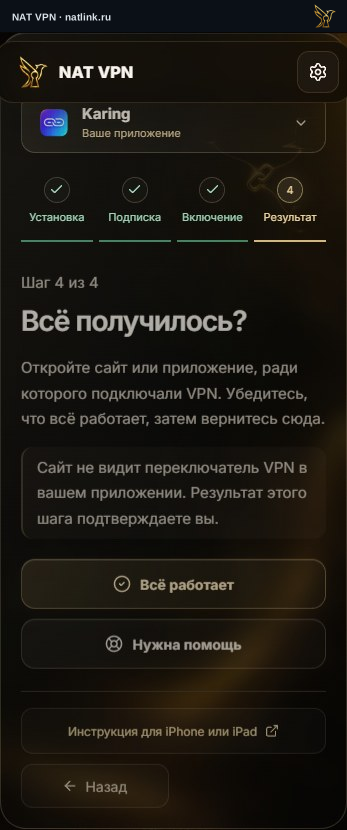
Russian NAT VPN dashboard for iPhone / iPad, with Karing selected. This is a demonstration account; use your own subscription. The green outline marks the control.