 NAT VPN
How to set up NAT VPN on Windows
On a computer, add the subscription to a compatible VPN client. Use the Windows links and instructions on natlink.ru: settings vary between apps.
Prepare your access and app
Open the dashboard in your computer browser.
Check the subscription expiry date and that a device slot is available.
Select Windows and a suitable app in the instructions.
Download the installer using the official link in the instructions and install it.
VPN installation on a work computer may be subject to your organization’s policy. If an administrator has blocked installation, ask them to approve it.
Import the subscription
Return to the dashboard and press the button to add the subscription to the installed app.
If the browser asks to open an external app, check its name and confirm.
For manual import, copy your personal subscription link into the client’s add-by-URL field.
Do not paste it into a search engine.
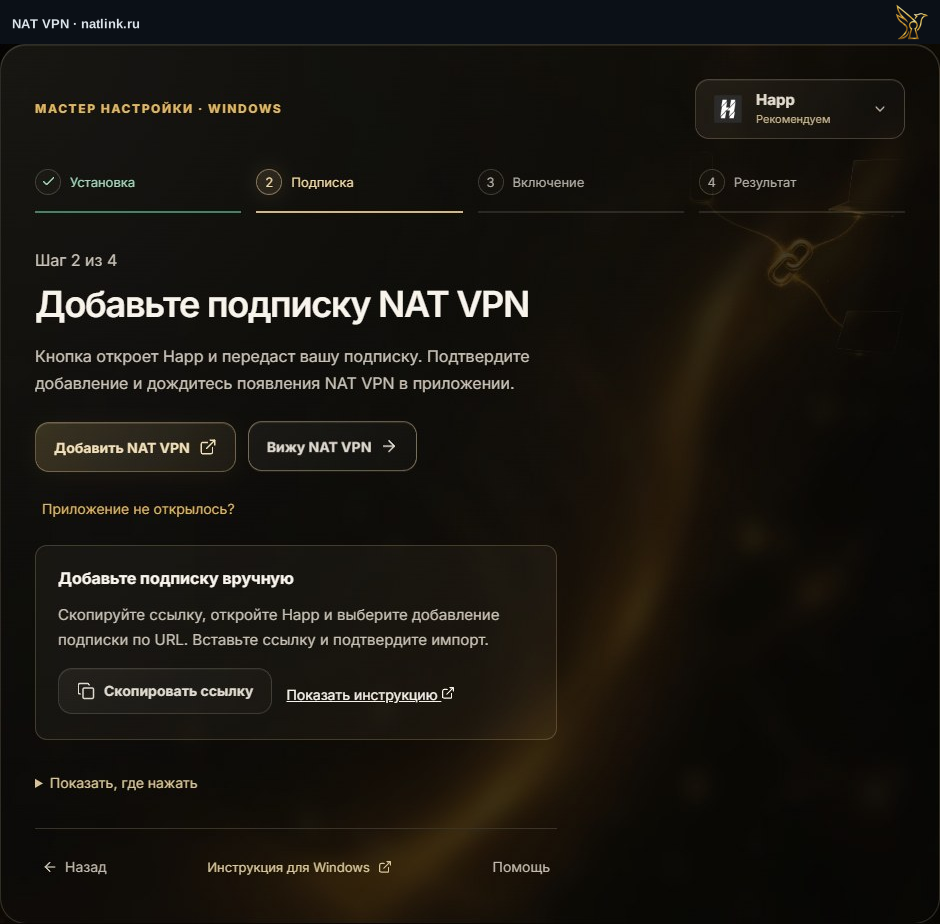
Russian NAT VPN dashboard for Windows, with Happ selected. This is a demonstration account; use your own subscription. The green outline marks the control.
Connect and check the mode
Choose an available connection and turn it on.
If the client offers system proxy and TUN modes, follow the instructions for that particular client: some programs do not use the system proxy, while TUN usually requires extra system permissions.
Test the app you need as well as the browser.
If the browser works but another app does not
Check the connection mode and the client’s routing rules.
Loading one website successfully does not prove that all computer traffic uses the VPN.
Do not turn off the entire firewall or antivirus; tell support the client name, its version and the app that still has the problem.
If internet access stops after disconnecting VPN
Open the client you used and disconnect through its controls.
Check whether its system proxy is still enabled.
On a managed computer, do not change the corporate proxy yourself.
If the cause is unclear, save the error message and contact support before resetting network settings.